

Documentation menu
Getting started
Dashboard & analytics
- Dashboard at a glance
- Cost analysis
- Pipeline performance
- Optimization insights
- Knowledge Base
- Connect your AI agent
Managed runners
- Runners overview
- Run your first job
- Migrate from GitHub-hosted
- The Runners page
- Custom runners (AI Scan)
- Self-healing
- Runner image & software
- Provisioning & warm pools
- Limits & concurrency
Caching
Team & notifications
Billing & plans
Help
The Runners page: fleet management
Manage your runner fleet from the dashboard: runner types, configurations, usage and savings, the self-healing activity feed, and the bulk migration tool.
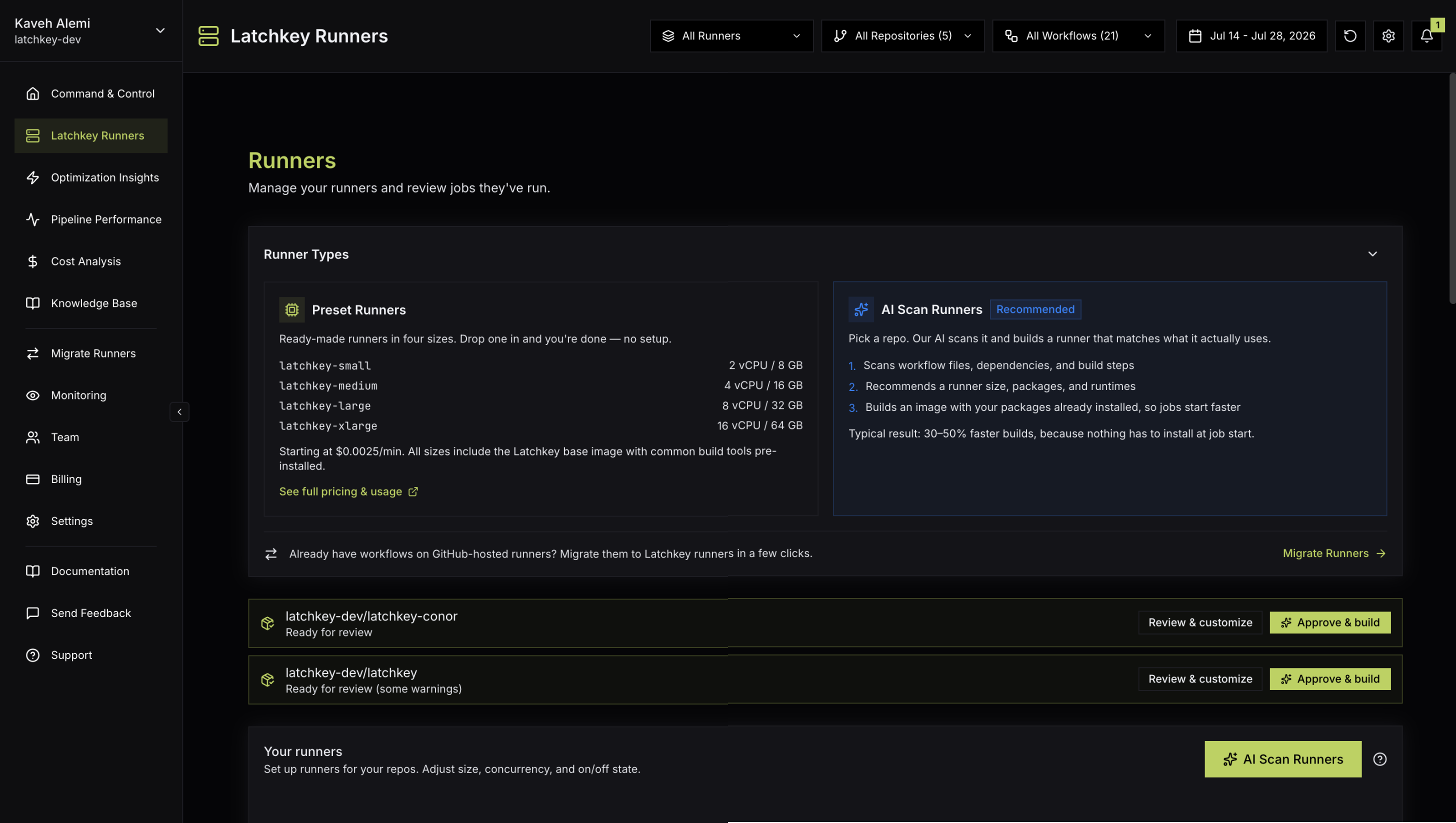
Everything about your managed runner fleet lives on the Runners page ("Manage your runners and review jobs they've run") in the dashboard sidebar. It is the operational home for the features described in the rest of this section.
What is on the page#
A five-minute weekly review#
The page rewards a short weekly habit. A suggested pass:
Weekly fleet review
The Your runners table#
The Your runners table ("Set up runners for your repos. Adjust size, concurrency, and on/off state.") lists every configuration in your workspace: the four presets plus any custom runners. Columns cover name, status, size, max concurrent, self-healing state, and active state, and the table header carries the AI Scan Runners action; before your first runner it shows a Set up your first runner empty state, and pending scan banners ("Ready for review") appear above it. Each row gives you:
- Enable/disable. A disabled configuration stops accepting new jobs (jobs targeting its label will queue).
- Copy CI snippet, so nobody types a label from memory.
- A Self Healing column showing whether healing covers the runner; the control itself is the workspace-wide switch in Settings, Self-Healing.
- Image build status for custom runners: you can see when a custom image is still building versus ready.
- Delete for custom configurations you no longer need.
Disable and delete do different jobs. Disable is the pause button: the label keeps existing, and jobs that target it queue until you re-enable it, which makes it the right move while you investigate a configuration. Delete is for custom configurations you are permanently done with.
The detail drawer#
Clicking a row opens the detail drawer with the full configuration: label, OS, vCPUs, RAM, disk, base image, and per-minute price, plus a Use in CI card with the label and a copyable GitHub Actions snippet. Admins can edit the runner name, custom labels, and Max Concurrent (0 = unlimited); non-admins see the same details read-only, so the whole team can see what each runner provides.
Recent Heals#
The Self-Healing section ("Recent heal attempts, agent reports, and PR proposals across your org.") lists every heal with its outcome badge (Healed, No Action, Failed, or Pending) and category, under the heal KPIs and the Heal Activity Over Time and Heal Rate by Category charts. Clicking a row opens the Heal Details drawer with the full report: what failed, the diagnosis, the exact action taken (in plain language), and for AI-diagnosed failures the agent's iterations. Healed runs in Pipeline Performance deep-link into the same reports. If self-healing is off, the section shows "Self-Healing is disabled." with a link to enable it in Settings.
Read the feed as a signal, not just a rescue log. Scattered one-off network heals across many workflows are the normal background noise of registries and external services having bad moments. Patterns are more interesting: the same workflow healed repeatedly in the same category points at something durable. Recurring memory heals suggest a job that wants a bigger runner size; recurring disk heals, a job that fills its disk every run; recurring tool heals, a step that assumes a tool the workflow never installs. Those are exactly the cases where a permanent fix beats being rescued every night; see heal pull requests for how self-healing proposes those fixes itself.
Migrate Runners#
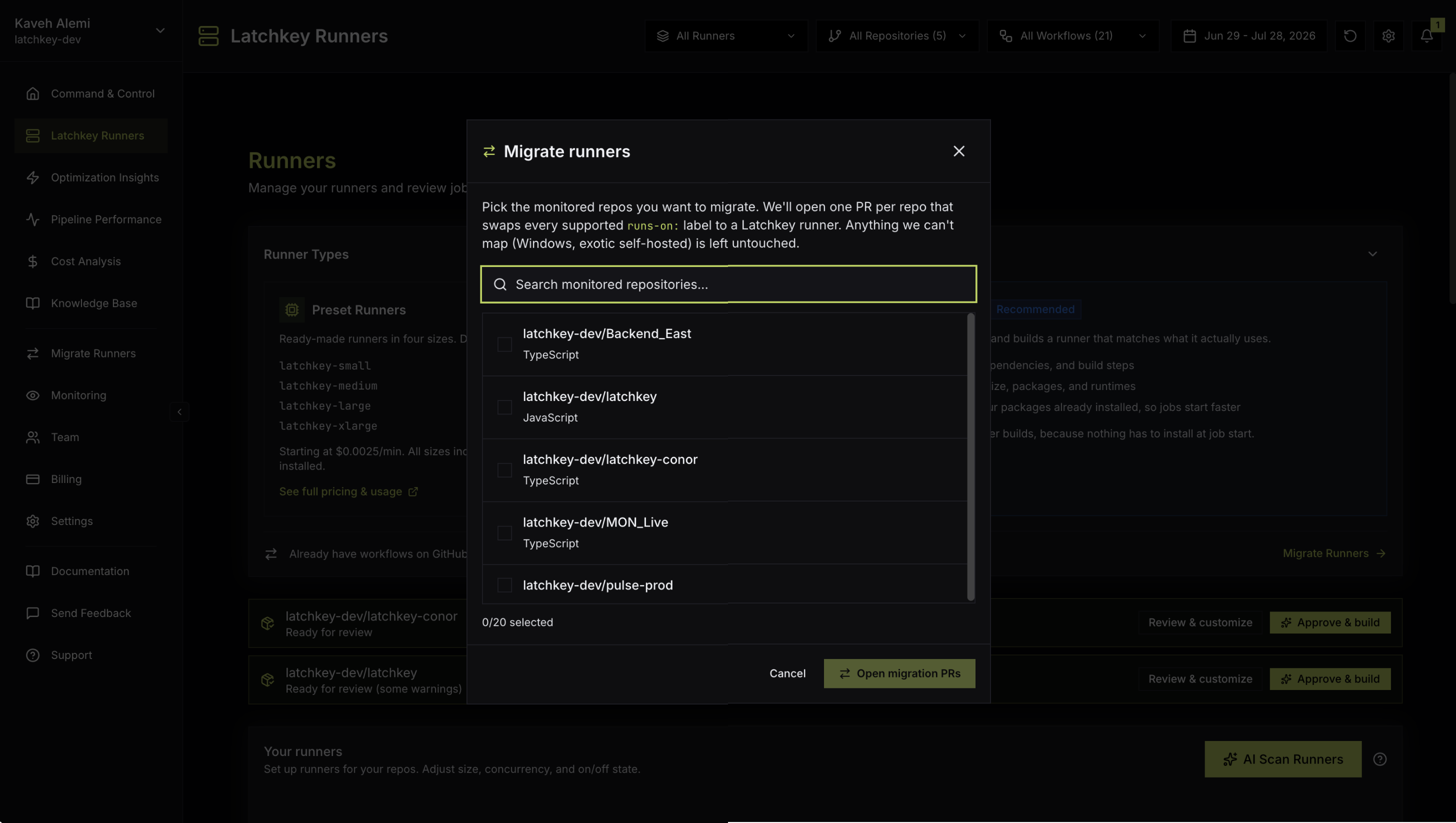
The tool has two entry points, and both open the same Migrate runners modal: the Migrate Runners item in the dashboard sidebar, and the CTA in the Runner Types card footer ("Already have workflows on GitHub-hosted runners? Migrate them to Latchkey runners in a few clicks."). This section covers the modal itself; the full guide, including the exact label mapping, PR contents, verification, and rollback, is Migrate from GitHub-hosted runners.
Each pull request rewrites every supported runs-on label to the right Latchkey size (standard Ubuntu labels become latchkey-small) and touches nothing else; Windows and macOS jobs, unrecognized labels, and lines with ${{ }} expressions are left alone. A before and after mapping table for each file shows exactly what changed, so review takes minutes, not days.
- Once the PRs are open, the modal lists each one with its PR number and a View PR link: "Opened N pull requests. Merge each on your schedule."
- If a repository already has an open migration pull request, Latchkey links to it instead of opening a duplicate.
- If there is nothing left to switch, the modal shows a Nothing to migrate state.
- Opening migration PRs requires an admin or owner role; nothing in your repositories changes until your team merges.