

Documentation menu
Getting started
Dashboard & analytics
- Dashboard at a glance
- Cost analysis
- Pipeline performance
- Optimization insights
- Knowledge Base
- Connect your AI agent
Managed runners
- Runners overview
- Run your first job
- Migrate from GitHub-hosted
- The Runners page
- Custom runners (AI Scan)
- Self-healing
- Runner image & software
- Provisioning & warm pools
- Limits & concurrency
Caching
Team & notifications
Billing & plans
Help
Connect your AI agent (MCP)
Give Claude Code, Cursor, or any MCP-compatible agent secure access to your CI failures, plus opt-in workflow re-runs, so it can triage, fix, and verify from your editor.
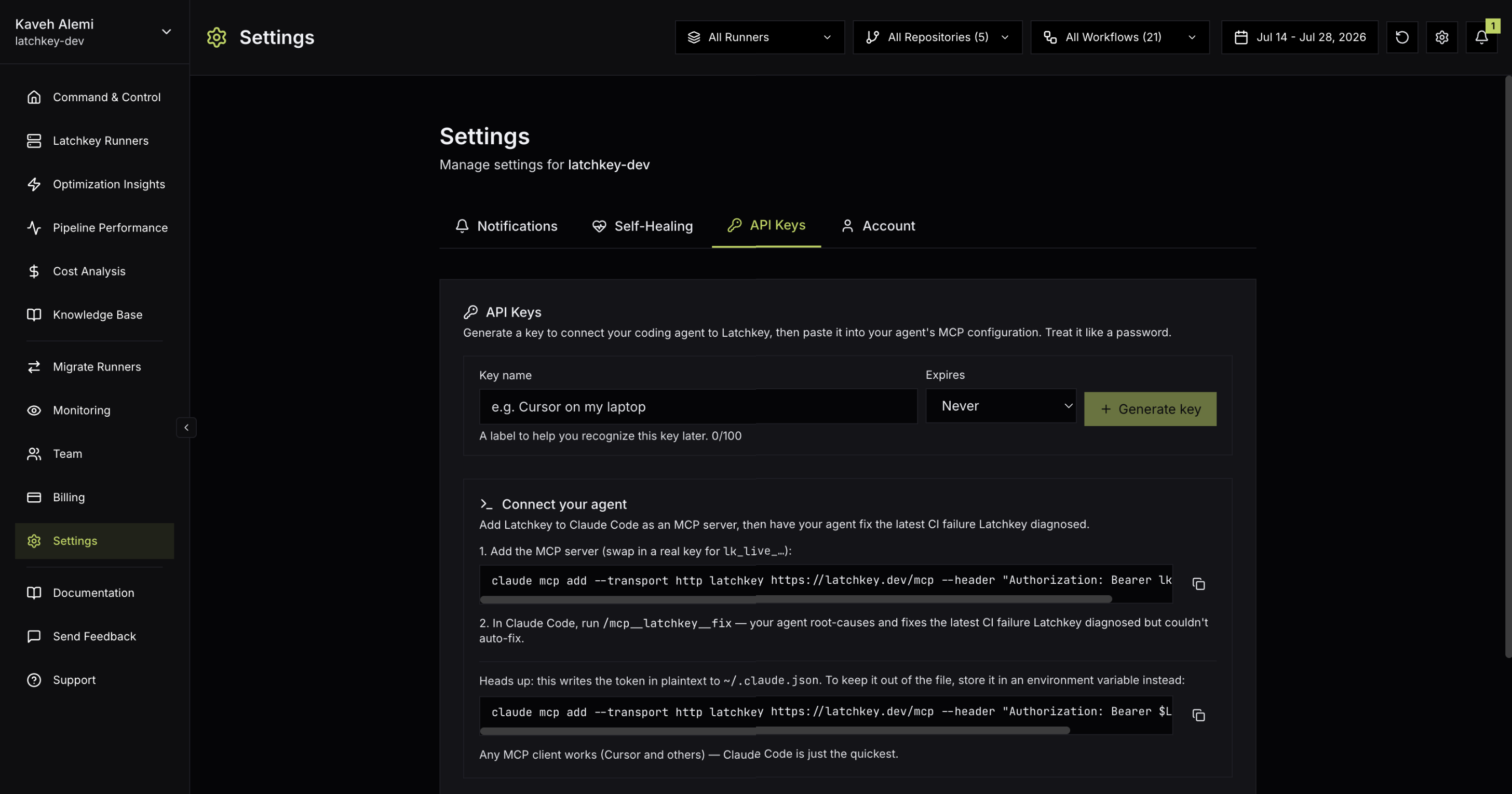
Latchkey ships an MCP server: your AI coding agent connects to it with a Latchkey API key and can pull real CI failure context (failed runs, logs, diagnosis bundles) straight into your editor session. Instead of copy-pasting logs into a chat, your agent asks Latchkey directly and gets everything it needs to fix the failure.
This is the hand-off half of self-healing: self-healing fixes environment failures during the run and never touches your source, so when the real problem is a bug in your code, the build fails truthfully, and that failure arrives here as a ready-to-fix bundle for your agent.
There are two ways in: create a key yourself in Settings, API Keys (the setup below), or let the AI Insight page do it for you. Findings better fixed by your own coding agent offer Copy prompt, a ready-made prompt to paste into your agent, and a Set up MCP shortcut that creates a key named coding-agent and shows the exact connect command.
What a connected agent can do#
The server exposes seven capabilities: five tools your agent calls for data and actions, and two prompt flows that orchestrate a whole task:
You never call these by name. You ask your agent a plain-language question, and it decides which capability answers it. Some illustrative pairings:
| You ask your agent | Capability it reaches for |
|---|---|
| "What is failing across our repos right now?" | Triage CI failures |
| "Show me the recent failed runs for this repo" | List failed runs |
| "Pull everything you have on that failed run" | Get failure bundle |
| "Fix the failing build" | Fix a CI failure |
| "Did that run pass? How long did each job take?" | Check run status |
| "Show me the end of the deploy job's log" | Tail run logs |
| "I pushed the fix, re-run CI and watch it" | Re-run a workflow |
What a session looks like#
Two illustrative sessions. The exact wording, and the agent's exact replies, will vary by agent; the shape of the exchange is the point.
You open your editor and ask: "What is failing in our repos?" The agent runs the Triage CI failures flow and comes back with a survey of failures across your monitored repositories, prioritized. You narrow it: "Which of those matter most for the release?" and the agent reasons over the same data without you ever opening a CI tab.
The value is the loop staying in one place: question, context, next question, all inside the editor session where you will make the fix.
You ask: "Pull the failure bundle for the latest red build and fix it." The agent lists recent failed runs to find the right one, pulls the full bundle for it (logs, diagnosis, and workflow details), and then drives a guided fix from inside your editor, proposing changes for you to review.
Note what did not happen: the agent never touched Latchkey settings or GitHub through the key. It read failure context; the code changes went through you.
What is in a failure bundle#
The failure bundle hands your agent what it would otherwise reconstruct by hand:
- The root cause, in plain language.
- The failing step's exit code and the exact source file where the error surfaced.
- The full, untruncated logs of the failing step, including output GitHub hides in its log viewer. Secrets are stripped from the logs before they leave Latchkey.
- What self-healing already investigated and why it stood down, plus the workflow definition.
Setup#
Create an API key
Open Settings, API Keys (owners and admins manage keys). Click Generate key, name it after where it will live (for example "Cursor on my laptop"), and pick an expiry: Never (the default), 30 days, 60 days, 90 days, or 1 year.
Copy the key immediately
The full key (it starts with lk_live_) is shown once, at creation. After that the UI only shows a placeholder. Treat it like a password; if you lose it, revoke it and create a new one.
Connect your agent
The Connect your agent block on the same settings tab shows the exact command for your workspace. For Claude Code it looks like:
$ claude mcp add --transport http latchkey \
    https://latchkey.dev/mcp \
    --header "Authorization: Bearer lk_live_YOUR_KEY"
Use it
Ask your agent about failing CI ("what is failing in our repos?", "pull the failure bundle for the latest red build and fix it"). Any MCP-compatible client that supports HTTP transport with a bearer header works the same way.
Re-run workflows after a fix (opt-in)#
By default a key is read-only. If you want the loop to close (agent fixes the code, pushes, re-runs CI, and watches it go green), create a key with Allow workflow dispatch checked. That key additionally carries the mcp:dispatch scope, and your agent can then trigger workflow_dispatch runs in your monitored repositories, poll them with the run-status tool, and read their logs when they finish. Green runs are readable too, so the agent can confirm the fix, not just observe the failure.
- Dispatch works only on repositories your workspace monitors, and only for workflows that declare the
workflow_dispatchtrigger. - Existing keys never gain dispatch retroactively; mint a new key with the checkbox enabled.
- The re-run runs whatever is on the branch you dispatch against; push the fix first, then dispatch.
Security model#
- Read-only by default. Keys can read CI failure and run data; changing anything in Latchkey or GitHub is off by default. The one write a key can opt into at creation is workflow dispatch (
mcp:dispatch), and it never extends to Latchkey settings or arbitrary GitHub actions. - Workspace-scoped. The workspace is derived from the key itself, so a key can only ever see its own workspace's data.
- Revocable. Revoke any key instantly from Settings, API Keys; revoked keys stay listed under a "Revoked (n)" section for audit.
What those three properties mean in practice. Read-only-by-default bounds the blast radius of a leak: a stolen default key exposes CI failure data (including log excerpts), which is why you should still protect it, but it cannot open PRs, alter settings, or act on GitHub on your behalf. A stolen dispatch-enabled key can additionally trigger dispatchable workflows in your monitored repositories, which is exactly why dispatch is a per-key opt-in with a warning at creation, not a default. Workspace scoping means there is nothing to configure and nothing to get wrong: the key itself determines what it can see, and it can never see another workspace. And because revocation is instant and revoked keys stay listed for audit, the safe response to any doubt is simply to revoke and reissue.
Two low-effort habits that keep this clean: create a separate key for each tool or machine (the naming prompt at creation, like "Cursor on my laptop", exists exactly for this), so revoking one key never breaks the others; and pick the shortest expiry that fits how you work, reserving never for setups you actively track. Key management lives with owners and admins; see Team and roles and Security and permissions for the wider model.