

Documentation menu
Getting started
Dashboard & analytics
- Dashboard at a glance
- Cost analysis
- Pipeline performance
- Optimization insights
- Knowledge Base
- Connect your AI agent
Managed runners
- Runners overview
- Run your first job
- Migrate from GitHub-hosted
- The Runners page
- Custom runners (AI Scan)
- Self-healing
- Runner image & software
- Provisioning & warm pools
- Limits & concurrency
Caching
Team & notifications
Billing & plans
Help
Install the GitHub App
How the Latchkey GitHub App installation works, why it requires an organization account, what permissions it uses, and how to fix a failed install.
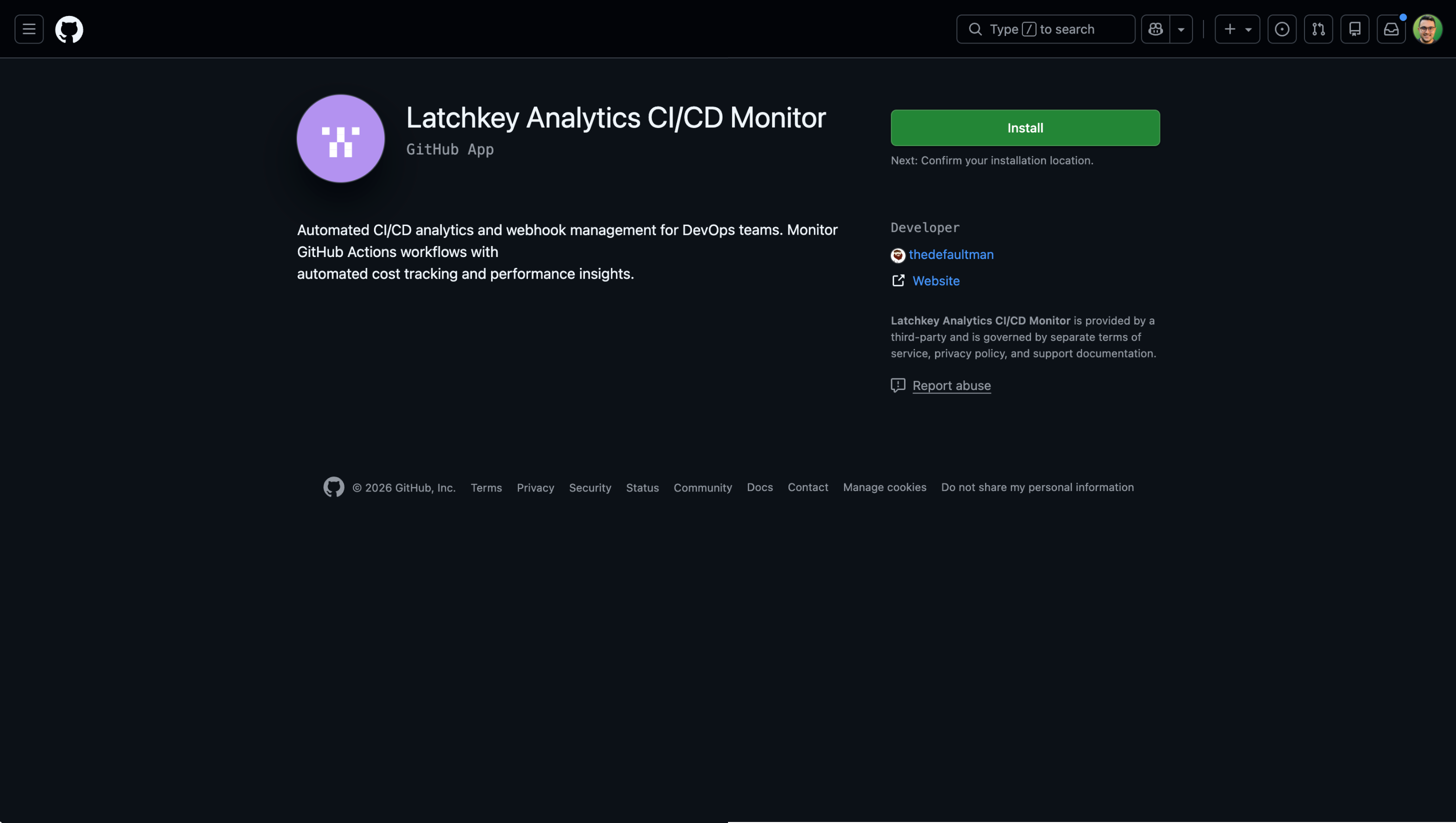
Latchkey connects to GitHub through a GitHub App. Installing it is the one-time setup step that everything else depends on: webhooks, analytics, AI recommendations, and managed runners all flow through the app. That also makes it the first thing to check when something looks disconnected: if the app is missing or sitting on the wrong organization, every downstream feature shows symptoms at once.
Installing during onboarding#
The normal path is step 1 on the Get started card, Connect GitHub. Click it and GitHub opens the install flow from the Latchkey app listing on GitHub. Pick the organization you want to monitor and confirm. When GitHub returns you to Latchkey, the installation is linked to your workspace and setup continues to repository selection.
Organization accounts are required#
Latchkey supports GitHub organization accounts only. If the app is installed on a personal (user) account, Latchkey rejects it: the installation is automatically uninstalled from GitHub and the dashboard shows a "You'll need a GitHub organization" error so you can retry with an organization. If you only have a personal account, create a GitHub organization first (it is free) and transfer or create your repositories there.
Create an organization and move your repo#
Only have a personal account? You do not need to abandon your existing repository. Create a free organization, move the repo into it, and reconnect. It takes a few minutes, and your history, issues, and stars come with it.
Create a free organization
Go to github.com/account/organizations/new and create an organization. The Free plan is all Latchkey needs; name it after your team, project, or handle. GitHub's own guide is Creating a new organization from scratch.
Move your repo into the organization
In the repository on GitHub, open Settings → General → Danger Zone → Transfer ownership, and transfer it to your new organization. Transferring keeps your commit history, issues, pull requests, and stars, and GitHub redirects the old URL so existing clones and links keep working. See Transferring a repository. If you would rather start clean, create a new repository directly inside the organization instead.
Reconnect Latchkey
Back in Latchkey, click Connect GitHub on the Get started card again and choose your organization this time. The installation links to your workspace and setup continues to repository selection.
What the app can access#
In plain terms, the Latchkey app:
- Reads workflow run and job metadata (names, timings, statuses, runner labels). This is the raw material for the cost, performance, and reliability dashboards.
- Reads your workflow YAML files under
.github/workflows/, so the AI can analyze them and propose concrete changes to the exact file an optimization PR would edit. - Receives webhooks for workflow events, so the dashboard stays current in real time. This is also why there is nothing to poll or refresh.
- Opens pull requests on your behalf only when you ask it to: applying an optimization recommendation, or a self-healing fix proposal. These PRs are always for your review; nothing is merged automatically, and pull requests from forks are never touched.
- Manages its own runner group in your organization so
runs-on: latchkey-*jobs can be routed to managed runners. That is organization CI plumbing, not repository content.
What it does not do: Latchkey does not read your application source code beyond workflow files, and never reads your secrets or environment variable values. If your security team wants the complete picture, including runner isolation and data deletion, point them at Security and GitHub permissions; it is written to answer a security review directly.
If the installation goes wrong#
- Installed on the wrong account: if it was a personal account, Latchkey already removed the installation; just retry with the organization. If it was the wrong organization, uninstall the app from that organization on GitHub (Settings, GitHub Apps) and install it on the right one. To confirm where the app currently lives, check each organization's Settings, GitHub Apps page: Latchkey appears in the list wherever it is installed.
- Closed the tab mid-install: sign in again and the Get started card picks up where you left off; nothing needs to be undone first.
- No permission to install: installing a GitHub App on an organization requires owner or admin permissions. Ask an organization owner to either install the app or grant you admin rights, then retry from onboarding.
Common questions#
Who becomes the workspace owner?
The person who installs the GitHub App is linked as the workspace owner. There is exactly one owner per workspace; the owner can later hand the workspace to another member with Transfer Ownership. Details in Team and roles.
Can I install Latchkey on more than one organization?
Yes. Each installation gets its own workspace, with its own plan, team, repositories, and data. The workspace switcher in the dashboard sidebar moves between the workspaces you belong to, and Latchkey remembers your last-used workspace across sign-ins.
Do I have to be the GitHub organization owner to install?
You need owner or admin permissions on the organization. If you have neither, ask an organization owner to install the app or to grant you admin rights.
Does installing the app change anything in my repositories?
No. There are no agents to install and no changes to your workflows until you choose to make them. Latchkey only ever writes through pull requests you can review: an optimization you apply, or a self-healing fix proposal. See Security and GitHub permissions.